
As a solopreneur, you’ve likely spent a lot of time perfecting your social media content. You put in the work to engage your audience, but when they finally click that single link in your bio, where do they go?
For many, the answer is Linktree or a similar third-party tool. While these services are convenient, they’re effectively a middleman standing between you and your potential clients.
When you use an external tool, you’re giving away your SEO juice and your data. Every click someone makes stays on their platform before it eventually reaches yours. There’s a better way.
In this post, I’ll teach you how to build your link in bio page on your WordPress website. It’s simpler than you think, it’s completely free, and it keeps your brand at the centre of everything.
Why you should host your own links
I’m a huge advocate for making your website the home base for your entire business. When you host your own links, you’re choosing a more sustainable way to grow.
1. You own the traffic
Every time someone clicks your link in bio, they land directly on your domain. This tells Google that your site is active and relevant, which helps your overall search rankings. You’ve worked hard for that visit, so you should be the one to keep it.
2. Your brand stays consistent
Third-party tools often have limited customisation unless you pay for a premium plan. By using your own site, you can use your exact brand colours, your specific fonts and your unique voice. There’s no Linktree logo at the bottom to distract people from your message.
3. You get better data
If you use Google Analytics or a privacy-first tool like Fathom, you’ll see exactly how people are moving through your site. You’ll know if they clicked your latest blog post and then stayed to read your services page. That’s insight you just don’t get with a basic external link tool.
4. It’s one less subscription
We’ve all got subscription fatigue. Building this page on WordPress means you aren’t paying for pro”features you already have access to on your own website.
How to build your link in bio page on your WordPress website
You don’t need to be a techy person to do this. We’re going to use the standard WordPress Block Editor (Gutenberg) to create a clean, mobile-first page.
1. Create your new page
Log in to your WordPress dashboard and go to Pages > Add New.
Give your page a simple title like “Links” or “Hello”. Your URL slug will then be something like yourwebsite.com/links. This is what you’ll paste into your social media profiles later.
2. Choose a clean layout
Most modern WordPress themes allow you to change the Page Attributes or Template in the sidebar on the right.
Look for an option like “Blank Page”, “Landing Page”, or “No Header/Footer”. You want this page to feel like a dedicated mobile app, so removing the main navigation menu helps keep visitors focused on your links.
3. Add your profile photo
Click the + icon to add a new block and search for the Image Block.
Upload a friendly, high-quality photo of yourself. In the block settings, you can use the Styles tab to make it a circle.
4. Create your buttons
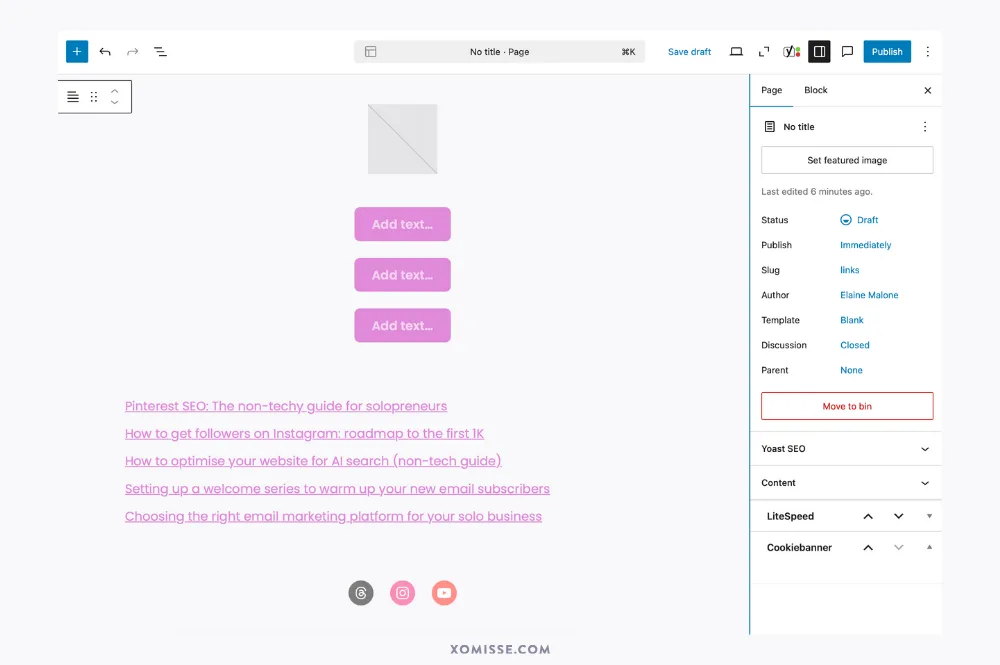
This is the most important part. Click the + icon and search for the Buttons Block.
Type your first call to action, like “Work with me” or “Read the blog”.
In the sidebar settings:
- Set the width to 100% so the buttons are easy to tap on a phone.
- Change the colours to match your brand palette.
- Add the link to the relevant page on your site.
Once you’ve styled one button, you can simply duplicate it to keep the design consistent for your other links.
5. Add your latest content
One of the best features of hosting your own link page is that it can update itself.
Add the Latest Posts Block below your buttons. You can set it to show just the most recent post with a small thumbnail. This means every time you publish a new article, your link in bio is automatically updated. It’s one less thing on your to-do list.
6. Don’t forget social icons
If you want people to find you on other platforms, add the Social Icons Block at the very bottom. It’s a nice way to round off the page without it feeling cluttered.
Strategy over trends: What to include
It’s tempting to add every single link you’ve ever created, but that leads to decision fatigue for your visitors.
I recommend sticking to 5 or 6 key links. Think about what your audience actually needs when they’re scrolling on their phone.
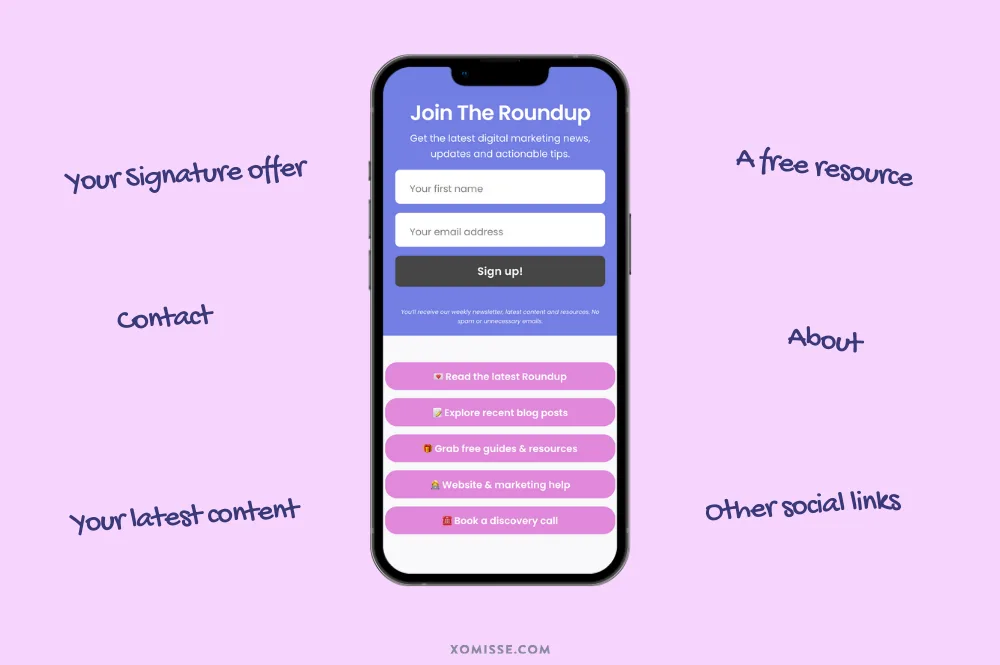
- Your Signature offer: The main way people can work with you.
- A free resource: Your lead magnet or newsletter sign-up to build your email list.
- Your latest content: A link to your most recent blog post or podcast episode.
- About: For the people who are new to your world and want to know who you are, include a short bio or link to your about page.
- Contact: A direct link to your email or a simple contact form.
Mobile-first is the only way
Most people will view this page on a mobile device while they’re on the go.
Before you hit publish, use the Preview function in WordPress and select Mobile. Make sure the buttons are large enough to tap easily and that the text is easy to read. If something looks off, adjust the spacing using Spacer Blocks.
Why this is a “Signature Site” staple
Building your own links page is an empowering step toward taking full control of your online presence. It eliminates the need for extra tools and keeps your brand front and centre.
While this tutorial shows you how to do it yourself, I realise that sometimes you just want the tech handled for you.
When I work with clients on a professional website build, a custom link in bio page isn’t an afterthought. It’s a key bonus included in all our website development packages.
I believe your website should work as hard as you do. Having a perfectly branded, high-converting links page built right into your system ensures you never have to worry about third-party outages or mismatched branding again.
Final checks and SEO
Before you swap that link in your Instagram bio, make sure you’ve added Alt Text to your images. This helps with accessibility and gives search engines more context about your page.
You can also use a plugin like Yoast SEO or Rank Math to set a specific Social Image. This ensures that if someone shares your links URL, it looks beautiful and professional in the preview.
Your turn to launch
Create your page, add your buttons, and reclaim your traffic. It’s a small change that makes a massive difference in how you show up as the expert you are.
If you get stuck or want to talk about building a site that does all this (and more) for you, I’m here to help. You don’t have to do the tech alone. Check out my services for more!
